Build boardroom-ready presentations in half the time
Learn to harness Microsoft Copilot and PowerPoint's built-in AI tools together — so you can go from blank slide to polished, professional deck without the late nights or guesswork.

My promise is simple: by the end of this school, you'll never dread building a presentation again.— Dawn Olson
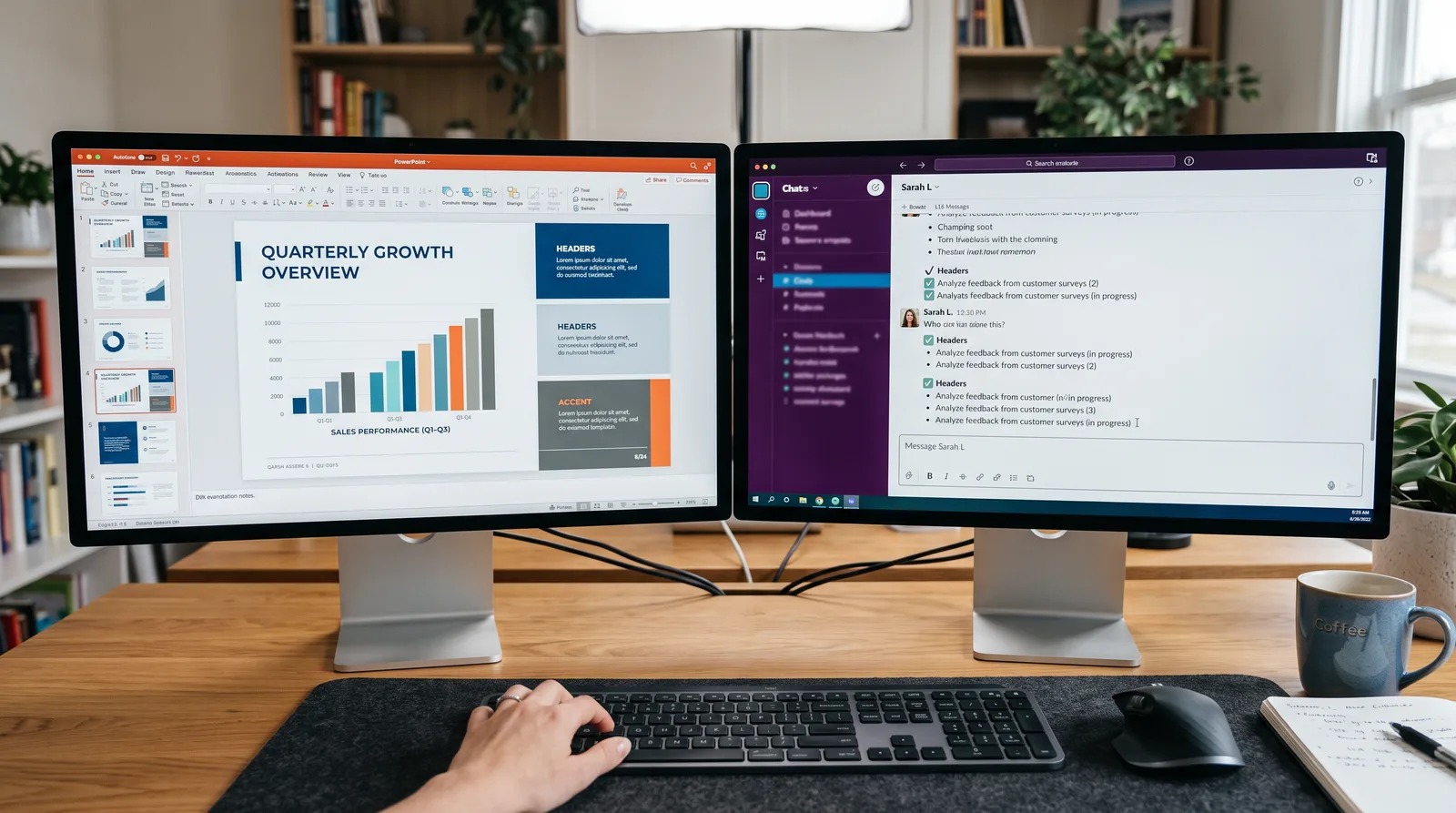
What you'll learn
What you'll be able to do
- Use Microsoft Copilot to generate a full presentation outline and slide content from a simple text prompt
- Apply advanced PowerPoint design tools — themes, layouts, and Designer suggestions — to produce polished, professional decks
- Edit, refine, and rewrite slide copy using Copilot's in-app chat to match any audience or tone
- Build data-driven slides by inserting and formatting charts, tables, and summaries with Copilot assistance
- Automate repetitive formatting tasks and apply consistent branding across an entire deck in minutes
- Deliver presentations confidently using Presenter Coach and Speaker Notes generated with Copilot
How it works
A school that adapts to you
This isn't a set of static videos. Every lesson is generated live and tuned to where you actually are.
We learn your level
A quick placement check tailors your starting point so you're never bored or lost.
Lessons adapt as you go
Each lesson is written for your pace and your goal, adjusting as your skills grow.
Your AI coach keeps you moving
Checkpoints, feedback, and gentle nudges turn progress into a real result.
The curriculum
What's inside your school
6 modules · 21 lessons

Getting Started with Microsoft 365 & Copilot
Covers the essentials of the Microsoft 365 environment and how Copilot is integrated into PowerPoint so students can hit the ground running.
- 1.1Navigating the Microsoft 365 EcosystemIncluded
- 1.2Setting Up Copilot in PowerPointIncluded
- 1.3Your First Copilot PromptIncluded
Building Presentations with Copilot
Teaches students to use Copilot's AI capabilities to generate complete slide decks, refine content, and tailor messaging for any audience.
- 2.1Generating a Full Deck from a PromptIncluded
- 2.2Refining and Rewriting Slide Copy with Copilot ChatIncluded
- 2.3Adjusting Tone and Messaging for Your AudienceIncluded
- 2.4Summarising Long Documents into SlidesIncluded
Professional Design with PowerPoint Tools
Explores PowerPoint's built-in design features — themes, layouts, and Designer — so every deck looks polished and on-brand.
- 3.1Applying Themes and Slide LayoutsIncluded
- 3.2Using PowerPoint Designer for Instant Layout SuggestionsIncluded
- 3.3Working with Images, Icons, and Visual ElementsIncluded
- 3.4Enforcing Consistent Branding Across a DeckIncluded
Data-Driven Slides with Charts, Tables, and Copilot
Shows students how to build compelling data slides by inserting charts and tables and using Copilot to generate summaries and insights.
- 4.1Inserting and Formatting Charts in PowerPointIncluded
- 4.2Building and Formatting TablesIncluded
- 4.3Using Copilot to Summarise and Explain DataIncluded
Automating Formatting and Branding at Scale
Covers time-saving techniques to automate repetitive formatting tasks and maintain brand consistency across large or recurring decks.
- 5.1Using Copilot to Reformat and Reorganise SlidesIncluded
- 5.2Automating Repetitive Tasks with PowerPoint Macros and ActionsIncluded
- 5.3Creating and Reusing Custom TemplatesIncluded
Delivering with Confidence: Speaker Notes and Presenter Coach
Prepares students to present their AI-assisted decks with poise using Copilot-generated speaker notes and PowerPoint's Presenter Coach.
- 6.1Generating Speaker Notes with CopilotIncluded
- 6.2Practising with PowerPoint Presenter CoachIncluded
- 6.3Presenting in Presenter ViewIncluded
- 6.4Sharing and Exporting Your Final DeckIncluded
Who it's for
Is this you?

Busy team leads
You present constantly and need a faster, more consistent way to turn ideas into polished decks without sacrificing quality.

Office professionals
You build presentations regularly but rely on trial and error — this school gives you a proper, repeatable workflow that saves hours.

New to Microsoft Copilot
You've heard about Copilot but haven't used it yet — here you'll get a clear, guided introduction with zero assumed technical knowledge.

Data and finance professionals
You need to turn numbers and reports into clear, compelling slides — learn to use Copilot and PowerPoint's chart tools to make data easy to understand.

Nervous presenters
You know your material but freeze in front of an audience — Presenter Coach and Copilot-generated speaker notes will help you deliver with real confidence.

Business owners and freelancers
You pitch clients and stakeholders regularly and need professional-looking decks fast, without a designer on call.
Questions
Frequently asked
Your teacher
A note from your teacher

Dawn Olson
If you've ever spent two hours building a presentation that should have taken twenty minutes, I hear you. Most of us weren't taught how to use PowerPoint efficiently — we just picked it up as we went, slide by painful slide. And now there's a whole layer of AI capability sitting inside Microsoft 365 that most people haven't touched yet, either because they don't know where to start or because it all feels a bit daunting.
That's exactly why I built Slides & Copilot. I wanted to create the resource I wished I'd had — something practical, jargon-free, and grounded in the kinds of presentations real people have to build at work. Not design-school theory. Not tech demos. Actual step-by-step walkthroughs that take you from "I have a blank slide and a deadline" to "this deck is ready to go."
Here's what I find genuinely exciting about where we are right now: Copilot doesn't just speed things up, it changes what's possible. You can hand it a rough idea — a few bullet points, a document, a topic — and get back a structured, coherent presentation draft in seconds. Then you can have a conversation with it to reshape the tone, tighten the messaging, or tailor the content for a completely different audience. That's a superpower for anyone who presents regularly, and this school teaches you how to use it properly.
We also go deep on the design and delivery side, because a great AI-generated draft still needs to look the part and land well in the room. You'll leave knowing how to apply themes, enforce consistent branding, build data slides that communicate clearly, and practise your delivery with Presenter Coach until you feel genuinely confident — not just prepared.
I've kept every lesson as clear and practical as possible, because I know you're busy and you need this to work in the real world. You don't need a technical background. You don't need to be a designer. You just need to show up, follow along, and apply what you learn. The results will speak for themselves — and so will your next presentation.
Come and join us. I can't wait to show you what's possible.
— Dawn Olson
Start your journey today
Join get instant access — learn at your own pace with an AI coach in your corner.
$47/mo
Recurring billing · cancel anytime
Secure checkout · Instant access
- 6 modules, 21 lessons
- AI-adaptive lessons tuned to your level
- Quizzes & checkpoints to lock in progress
- Your own AI learning coach
- Learn on any device, at your pace
- Full access for as long as you're subscribed